




Some PDFs look editable until you actually try to work with them. You click into a paragraph, try to change a date, or copy a sentence, and nothing happens. That is usually because the file is not built from live text. It is a scan, photo, or image-based PDF.
This comes up a lot with contracts, printed forms, archived records, and older paperwork that was scanned and saved later. You can read the file, but editing it is a different story.
If you need to correct information, reuse text, or update a document without retyping everything, OCR is the step that makes that possible. Wondershare PDFelement includes OCR for exactly this kind of task, helping turn scanned pages into text you can actually work with.
Why some PDFs cannot be edited
Not every PDF is text-based. Many are made from scanned pages or images, so the content looks like text but behaves like a picture.
A PDF editor can still open the file, but it cannot treat those words as editable content until OCR identifies and converts them. Once that happens, the document becomes much easier to search, copy, and revise.
When you need OCR before editing
OCR is usually necessary if you notice any of the following:
· You cannot place the cursor inside a line of text
· Copy and paste does not work properly
· The page acts like one large image
· The file came from a scanner, printer, or phone camera
· Search cannot find words that are clearly visible on the page
In that situation, an OCR PDF workflow is usually more practical than rebuilding the document by hand.
How to make a PDF editable in PDFelement
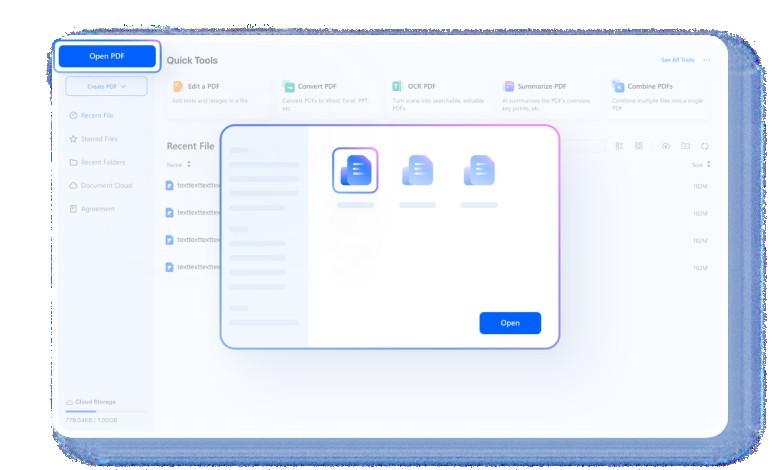
1. Open the PDF in PDFelement
Start by opening the file in PDFelement. If the PDF is scan-based, the document should appear as an image file rather than editable text.
Before running OCR, take a quick look at the scan quality. Cleaner pages usually lead to better recognition results.
2. Run OCR on the document
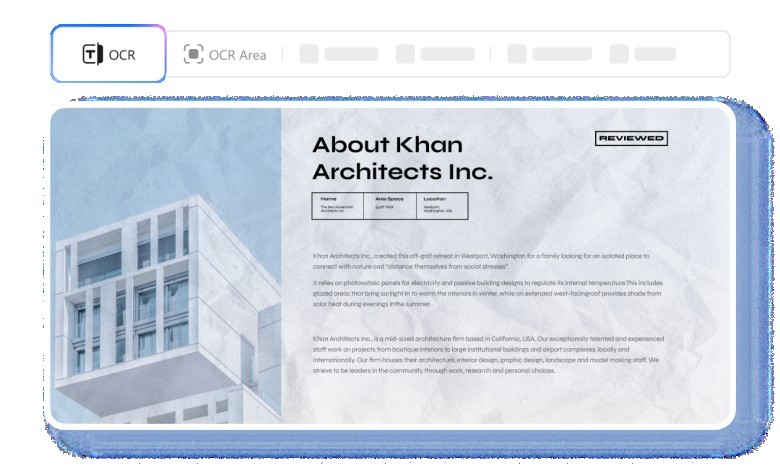
Use the OCR feature to process the file. This is the step that converts the scanned page into recognizable text.
When an image-based PDF is opened in PDFelement, it will prompt you to perform OCR.
Based on the product details provided, PDFelement supports more than 20 languages, which makes it useful for multilingual files and older document collections.
3. Review the recognized text
After OCR finishes, test the document. Try selecting a sentence, searching for a phrase, or clicking into a paragraph.
If the recognition worked well, the file should now behave like an editable PDF instead of a flat scan. This is also the best time to review names, figures, and tables, especially if the original document was faint or low quality.
4. Edit the PDF content
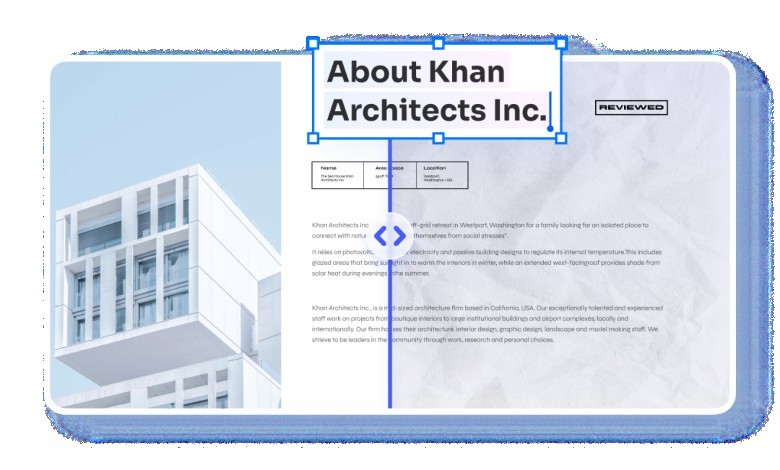
Once the text has been recognized, you can start editing the document inside PDFelement. That may include:
· fixing typos from the original scan
· updating dates or amounts
· adding comments or annotations
· reorganizing pages
· converting the file into another format if needed
The biggest benefit is simple: you do not have to start over. Instead of typing everything again, you can edit what is already there and focus on the parts that actually need attention.
5. Save or export the updated file
When you are done, save the edited PDF or export it in another format if your workflow calls for it.
That can be helpful when one team needs a cleaned PDF for storage while another needs a Word version for further editing.
Tips for better OCR results
OCR works best when the original file is clear. Even a strong OCR engine depends on readable input.
A few simple habits can improve the result:
· Use higher-resolution scans when possible
· Straighten tilted pages before processing
· Avoid heavy shadows or dark backgrounds
· Check the language setting for non-English documents
· Review tables, signatures, and small text manually afterward
If the source file is poor, some cleanup may still be necessary. That is normal with scanned documents.
Who this method works best for
This workflow is especially useful for:
· office teams updating scanned forms
· legal or administrative staff working with archived files
· students and researchers using scanned source material
· finance and operations teams extracting details from older documents
· anyone who wants to reuse text without retyping the entire file
For this kind of work, PDFelement is a practical fit because it combines OCR with editing, conversion, and general PDF handling in one place.
Final thoughts
Making a PDF editable usually comes down to one thing: whether the file contains real text or only an image of text.
If it is a scanned file, OCR is what turns it into something you can actually revise. PDFelement gives users a straightforward way to process scanned PDFs, recognize text, and make changes without rebuilding the whole document from scratch. If you work with image-based PDFs on a regular basis, that can save a lot of time.

What's your reaction?
You may also like
-

10 Proven Strategies Accelerated Growth Advisors Recommend for Every MCA Firm
-
How Imaging Services Help Diagnose Medical Conditions
-
How to Plan Stress-Free Airport Transportation for Families With Young Children
-
Smart Business Growth: How to Scale Customer Support Without Increasing Overhead
-
Essentials Hoodie for Everyday Layering: Stylish Outfit Ideas for Every Season
-
Cloudways BFCM 2026: 80% OFF for 2 Months + Unlimited Migrations











Comments
0 comment