




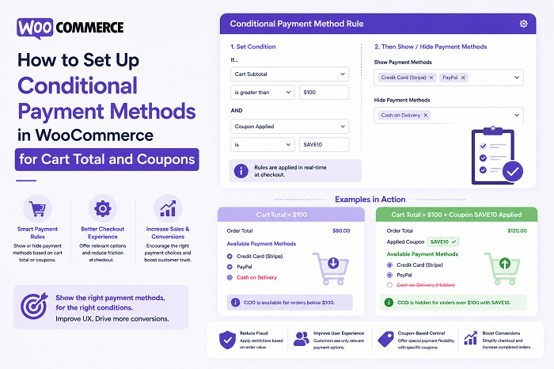
Not every payment method makes sense for every order. A customer placing a $15 order might be fine using any payment option available. On the other hand, someone placing a $2,000 order may require a different payment method entirely. The same thing happens with coupons. Perhaps you're running a promotion that should only work alongside specific payment gateways, or maybe you want to hide Cash on Delivery whenever a discount code is applied.
This is where WooCommerce conditional shipping and payment rules become incredibly useful.
Instead of showing every payment gateway to every customer, you can create rules that automatically display or hide payment methods based on what's happening inside the cart. The result is a cleaner checkout experience, fewer customer mistakes, and greater control over how orders are processed.
In this guide, we'll walk through how to configure conditional payment methods using cart totals and coupons with the Extendons Conditional Shipping and Payment Methods plugin.
Why Restrict Payment Methods Based on Cart Total and Coupons?
If you've ever managed a WooCommerce store with multiple payment gateways, you've probably noticed that some payment methods work better in certain situations than others.
For example:
- You may want to hide Cash on Delivery for orders above $500.
- You may want to allow Bank Transfer only for high-value purchases.
- You may want to disable specific payment methods whenever a coupon is applied.
- You may want to offer exclusive payment options for promotional campaigns.
- You may want to reduce transaction fees on lower-value orders.
Rather than manually managing these situations, the plugin automatically applies the rules for you at checkout.
What You'll Need Before Getting Started
Before creating payment rules, make sure the following are already configured:
- WooCommerce is installed and active.
- Your payment gateways are enabled.
- The Extendons Conditional Shipping and Payment Methods plugin is installed.
After activating the WooCommerce conditional shipping plugin, it adds dedicated settings where you can create payment gateway rules using conditions such as cart total, coupon codes, user roles, products, locations, shipping methods, and more. :contentReference[oaicite:0]{index=0}
Step 1: Open Payment Gateway Rules
From your WordPress dashboard:
- Go to WooCommerce → Settings.
- Open Payment and Shipping Settings.
- Select the Payment Gateways tab.
- Click Add New Rule.
This is where you'll create conditions that determine when payment methods should appear or disappear during checkout. :contentReference[oaicite:1]{index=1}
Step 2: Create a New Conditional Payment Rule
Once the rule popup appears, you'll see several configuration options.
Start by entering:
- Rule Name
- Target Gateway
- Action Type
The action determines what happens when conditions are met.
You can choose to:
- Hide only selected payment gateways
- Show only selected payment gateways
- Prevent order submission entirely
This flexibility allows you to build very simple or highly advanced checkout workflows. :contentReference[oaicite:2]{index=2}
How to Restrict Payment Methods by Cart Total
Let's look at a practical example.
Suppose you want Bank Transfer to appear only when the cart total exceeds $500.
Configuration Example
- Rule Name: High Value Orders
- Target Gateway: Bank Transfer
- Action Type: Show Only These Gateways
- Condition: Cart Total
- Operator: Greater Than (>)
- Value: 500
After saving the rule, customers with orders above $500 will see Bank Transfer available at checkout. Customers below that amount will not.
Cart total is one of the available rule conditions supported by the plugin, making it easy to tailor payment options according to order value. :contentReference[oaicite:3]{index=3}
How to Hide Payment Methods When a Coupon Is Applied
Coupons often change how you want payments handled.
Let's say you're running a seasonal promotion using the coupon code SUMMER25. To avoid stacking discounts with Cash on Delivery, you may want to remove that payment option whenever the coupon is used.
Configuration Example
- Rule Name: Coupon Restriction
- Target Gateway: Cash on Delivery
- Action Type: Hide Only These Gateways
- Condition: Coupon Code
- Coupon Value: SUMMER25
Now whenever customers apply that coupon, Cash on Delivery automatically disappears from checkout.
The plugin includes coupon-based conditions specifically for this type of checkout control. :contentReference[oaicite:4]{index=4}
Combining Cart Total and Coupon Conditions
This is where things become much more interesting.
Many store owners don't want to rely on a single condition. They want multiple conditions working together.
For example:
- Hide Cash on Delivery when a coupon is applied.
- AND
- Only if the cart total exceeds $300.
Instead of creating multiple disconnected rules, the plugin allows you to combine conditions using AND / OR logic. This gives you much more precise control over checkout behavior. :contentReference[oaicite:5]{index=5}
Example Rule Structure
- Condition 1: Coupon Code = SUMMER25
- Condition 2: Cart Total > 300
- Logic: AND
Now both conditions must be true before the rule is triggered.
Testing Your Conditional Payment Rules
Before making your rules live, spend a few minutes testing them.
Create several test orders using different scenarios:
- Low-value cart without coupons
- Low-value cart with coupons
- High-value cart without coupons
- High-value cart with coupons
This helps ensure your payment gateways appear exactly as expected and prevents checkout issues later.
Additional Conditions You Can Use
Although this guide focuses on cart totals and coupons, the plugin supports many additional conditions.
- Products
- Product categories
- Shipping classes
- User roles
- Order weight
- Item count
- Billing country
- Shipping country
- Postcodes
- Products on sale
- Backorders
This means you can build highly customized checkout experiences without writing custom code. :contentReference[oaicite:6]{index=6}
How Conditional Shipping and Payments Improve Checkout
Many store owners first look at conditional shipping and payments WooCommerce solutions because they want more control. What they usually discover is that cleaner checkout pages also lead to fewer customer questions and less confusion.
When shoppers only see payment options that actually apply to their order, decision-making becomes easier. They aren't forced to sort through irrelevant gateways or wonder why certain methods may not work.
For larger stores with multiple payment providers, discount campaigns, and shipping setups, this kind of checkout optimization can make a noticeable difference.
Final Thoughts
Payment gateways don't need to be displayed the same way for every customer. Sometimes a coupon should trigger different payment options. Sometimes a cart total should unlock or restrict certain gateways. And sometimes both conditions should work together.
Using WooCommerce conditional shipping, you can build those rules without touching code. The Extendons Conditional Shipping and Payment Methods plugin makes it easy to create payment conditions based on cart totals, coupon usage, customer details, products, and much more.
If you're looking for a smarter checkout experience, setting up conditional payment methods is one of the simplest improvements you can make to your WooCommerce store.

What's your reaction?
You may also like
-

10 Proven Strategies Accelerated Growth Advisors Recommend for Every MCA Firm
-
How Imaging Services Help Diagnose Medical Conditions
-
How to Plan Stress-Free Airport Transportation for Families With Young Children
-
Smart Business Growth: How to Scale Customer Support Without Increasing Overhead
-
Essentials Hoodie for Everyday Layering: Stylish Outfit Ideas for Every Season
-
Cloudways BFCM 2026: 80% OFF for 2 Months + Unlimited Migrations









Comments
0 comment