




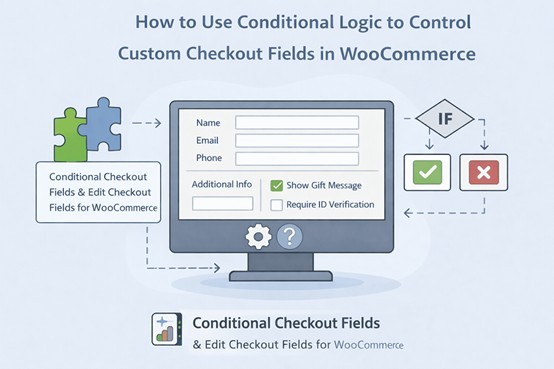
If you have ever gone through the checkout of a WooCommerce store and thought the form felt a little too generic, like it was clearly built for everyone and not really for you specifically, that feeling is not accidental. The default WooCommerce checkout is a plugin that works for all stores, and it does not really have a way to distinguish between a customer buying a simple downloadable file and someone ordering a custom embroidered jacket that needs sizing details, color preferences, and a specific delivery window.
Both customers see the exact same form, and that is honestly a bit of a problem once your store grows past selling just one or two straightforward product types. What conditional logic does, in the simplest way I can put it, is make your checkout form actually pay attention to what is going on. It looks at what products are in the cart, what the customer has already selected or filled in, what kind of user they are, and based on all of that, it decides which fields to show and which ones to keep hidden.
So instead of dumping every possible field onto every customer, the form only surfaces what is actually relevant to that specific person at that specific moment. It sounds like a small thing, but the difference it makes to how the checkout feels is pretty significant.
The Conditional Checkout Fields plugin by FmeAddons is what makes all of this possible through its built-in WooCommerce checkout field editor, and the good news is that none of it requires you to write a single line of code.
How the Conditional Logic Actually Works Inside the Plugin
When you are setting up or editing any field inside the WooCommerce checkout field editor plugin, there is an Add Conditions option sitting at the bottom of the field settings, and that is where everything happens. You define the rules there, and the plugin handles the rest on the frontend automatically.
The way the logic is structured is worth understanding properly because it gives you a lot more flexibility than it might seem at first glance. Inside a single condition group, every condition you add has an AND relationship with the others, which means all of them need to be true at the same time before the field shows up.
If you want a field to appear only when a customer has a product from a particular category in their cart and has also selected a specific option earlier in the form, those two conditions sit together in the same group, and both need to be satisfied simultaneously.
But if you need the field to show up in more than one scenario, you can create multiple condition groups, and those groups have an OR relationship with each other. So if either group's conditions are fully met, the field appears.
That combination of AND within groups and OR between groups gives you a surprisingly flexible system for handling even fairly complex checkout requirements without things getting messy to manage.
Showing and Hiding Fields Based on Products, Categories, and User Roles
One of the more immediately practical things you can do with this checkout field editor for WooCommerce is tie field visibility directly to what is sitting in the customer's cart. You can set a field to only appear when a specific product is being purchased, or when a product from a certain category is in the cart, and you can also flip it the other way and hide a field specifically for certain products or categories while showing it for everything else.
For stores that sell genuinely varied types of products, this is probably the feature that makes the biggest difference day to day. If you sell furniture alongside smaller home accessories, for example, you might have fields for delivery floor preference and assembly requirements that make complete sense for a sofa order but would just confuse someone buying a set of picture frames. Tying those fields to the furniture category means they only show up when they actually belong there.
User roles work along the same lines. If you have wholesale customers checking out through the same store as your regular retail buyers, there are probably fields that make sense for one group but not the other, like a purchase order reference number or a business registration field that a wholesale buyer would expect to fill in, but a regular customer would just find strange and unnecessary. You can control all of that by specifying which roles should see a field and which ones should not, and it applies cleanly without any workarounds needed.
Building Entire Sections That Appear Conditionally
Beyond individual fields, the WooCommerce checkout field editor plugin also gives you the option to create completely new sections on the checkout page and apply conditional logic at the section level rather than field by field. This is genuinely useful when you have a group of related fields that all belong together and all share the same conditions for appearing.
Say you offer an installation service for certain products, and you need to collect a preferred date, a time window, access instructions, and a contact number for the installer. Rather than applying the same condition to each of those four fields individually, you can bundle them all into a dedicated installation section, apply the condition once at the section level, and the whole block appears or disappears together based on whether an eligible product is in the cart.
You also get to choose exactly where on the checkout page a new section sits, with placement options including before or after customer details, billing fields, shipping fields, registration fields, and order notes, so it can slot into the flow of the checkout naturally rather than just appearing at the bottom as an afterthought.
Using Conditional Fields to Quietly Upsell at Checkout
Something that does not always get mentioned when people talk about checkout field editor for WooCommerce is that each field can carry a price, and that turns the whole system into a pretty natural upselling layer built right into the checkout process. When a customer selects a paid option like gift wrapping, priority dispatch, or an extended warranty, the extra charge gets added to the order total on the spot without needing a separate product page or a pop-up offer.
Because the field only appears when it is contextually relevant, it does not feel like a pushy sales tactic; it just feels like a relevant option that the customer can take or leave. That difference in how it is presented tends to make customers a lot more receptive to it than a generic upsell offer placed somewhere else in the funnel.
In Summary
A checkout form that actually responds to what a customer is doing and what they are buying is one of those things that sounds technical but has a very straightforward impact on the experience. People move through it faster; they do not get confused by questions that have nothing to do with their order, and the whole process feels like it was thought through rather than just thrown together.
The Conditional Checkout Fields plugin by FmeAddons gives you all of that through a WooCommerce checkout field editor that is genuinely manageable without any development help, and once you have it set up properly, you will wonder why the default checkout ever felt acceptable in the first place.

What's your reaction?
You may also like
-

Why Small Roofing Problems Can Become Harder to Diagnose When Homeowners Delay Repairs
-
Planning a Stair Lift for Shared Homes Without Disrupting Everyday Staircase Use
-
Managing Household Waste During Large Decluttering Projects Without Creating New Clutter
-
How to Plan Impact Door Installation Around Security, Access, and Everyday Household Routines
-
How Commercial Roofing Maintenance Planning Helps Property Managers Track Roof Conditions
-
Designing Privacy Around Street-Facing Windows Without Giving Up Useful Natural Daylight
















Comments
0 comment